Install TiviMateon your Fire TV Stick
- DeviceFire TV Stick
- AppTiviMate
- 3SetupFollow the steps
%20scale(0.100000,-0.100000)'%20fill='%23fff'%20stroke='none'%3e%3cpath%20d='M1028%203308%20l-3%20-293%20-92%20-3%20-93%20-3%200%20-189%200%20-190%2094%200%2094%200%204%20-467%20c4%20-399%207%20-476%2021%20-526%2037%20-127%20121%20-248%20218%20-312%20141%20-94%20238%20-120%20454%20-119%20174%200%20264%2017%20363%2069%2080%2041%2077%2031%2039%20141%20-33%2095%20-94%20250%20-103%20266%20-2%203%20-30%20-5%20-61%20-19%20-111%20-51%20-263%20-39%20-329%2025%20-15%2015%20-36%2047%20-48%2072%20-20%2043%20-21%2063%20-24%20458%20l-3%20412%20220%200%20221%200%200%20190%200%20190%20-217%202%20-218%203%20-3%20293%20-2%20292%20-265%200%20-265%200%20-2%20-292z'/%3e%3cpath%20d='M3600%202948%20c0%20-7%20-30%20-78%20-66%20-158%20-36%20-80%20-77%20-174%20-90%20-210%20-14%20-35%20-54%20-127%20-89%20-205%20-34%20-77%20-73%20-165%20-85%20-195%20-13%20-30%20-43%20-99%20-68%20-152%20l-45%20-97%20-31%2021%20c-17%2012%20-69%2055%20-116%2095%20-47%2040%20-107%2092%20-134%20116%20-59%2050%20-347%20292%20-472%20396%20-49%2041%20-108%2093%20-132%20115%20l-43%2041%2057%20-120%20c31%20-66%2078%20-169%20104%20-230%2026%20-60%2064%20-143%2084%20-183%2020%20-40%2045%20-94%2055%20-120%2010%20-26%2049%20-109%2085%20-185%2036%20-77%2066%20-142%2066%20-145%200%20-5%2073%20-166%20201%20-442%20l39%20-85%20266%200%20266%200%2017%2055%20c10%2030%2045%20127%2078%20215%20104%20274%20186%20497%20210%20570%2013%2039%2052%20147%2087%20240%20134%20355%20246%20662%20246%20672%200%202%20-110%203%20-245%203%20-189%200%20-245%20-3%20-245%20-12z'/%3e%3c/g%3e%3c/svg%3e)
TiviMate
Loved by Fire TV users · Fire TV Stick, 4K & Cube
- 1
Step one · Get Downloader on
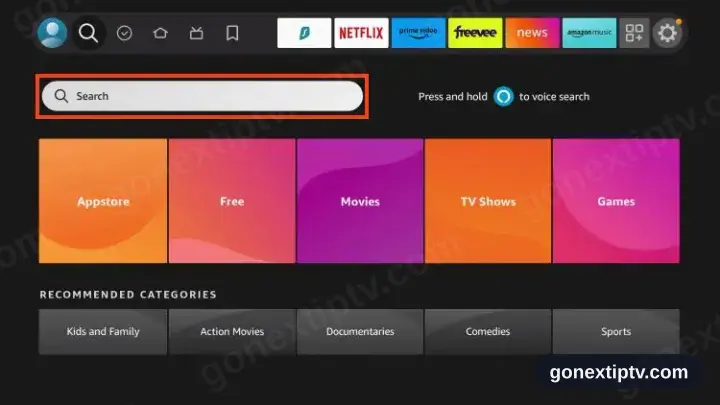
Hit search on Fire TV
From the home screen go up to the top row and open the magnifier.
- 2
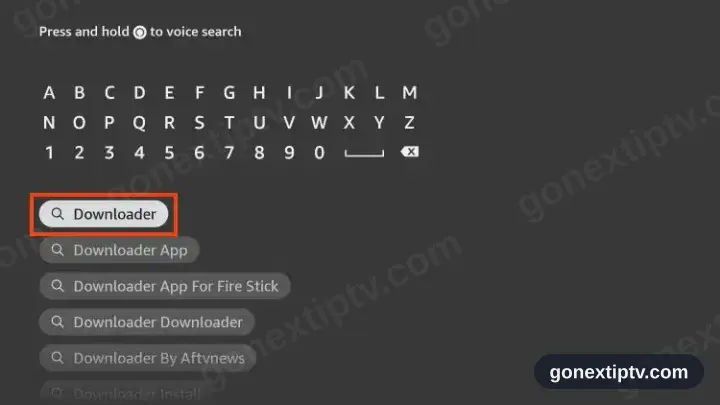
Type Downloader
Use the on-screen keyboard. Matches appear before you finish the word.
- 3
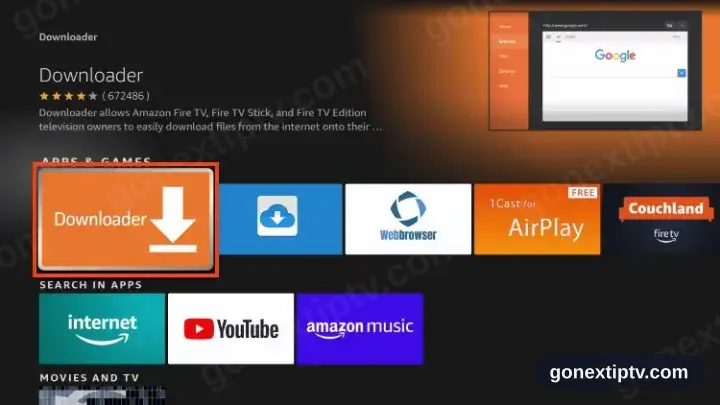
Take the orange result
Several matches show. You want the flat orange tile with a white arrow.
- 4
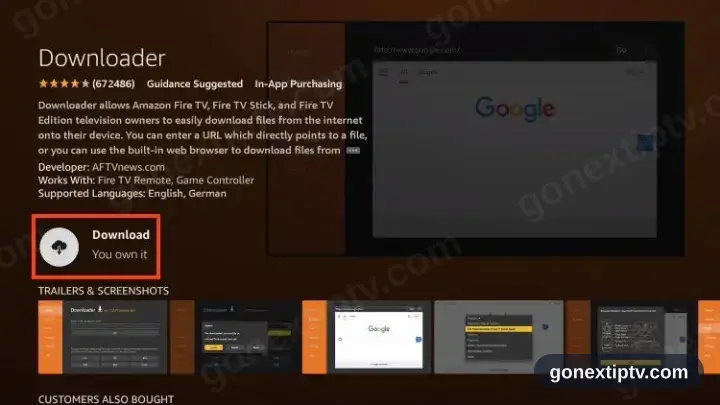
Hit Download or Get
Older and newer Firesticks label the button differently. Same Appstore install either way.
- 5
Sit tight
A spinner runs briefly. Button presses at this point can abort it.
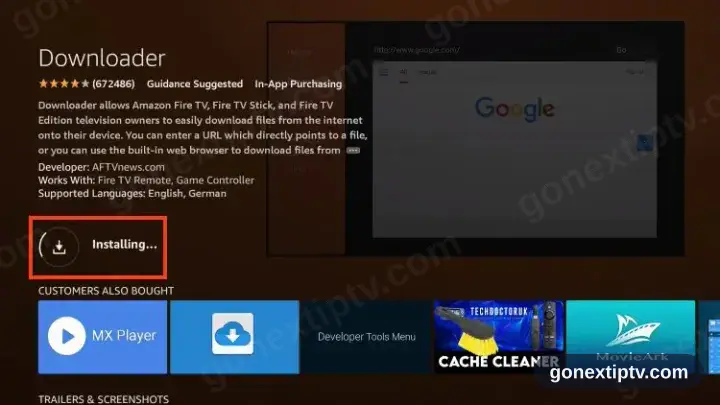
- 6
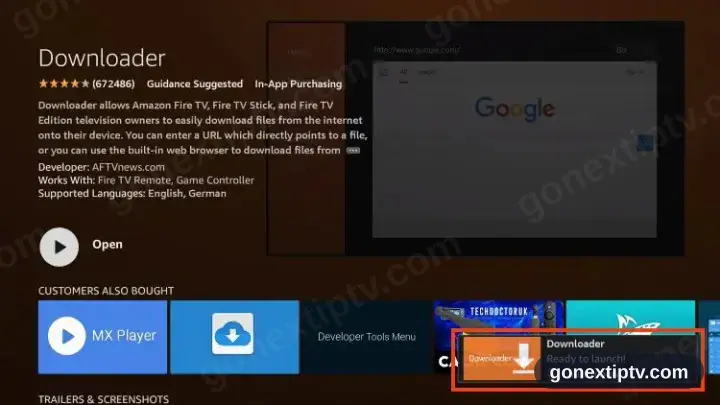
That is Downloader in
Open and Uninstall replacing the install button means it landed.
- 7
Step two · Unlock installs
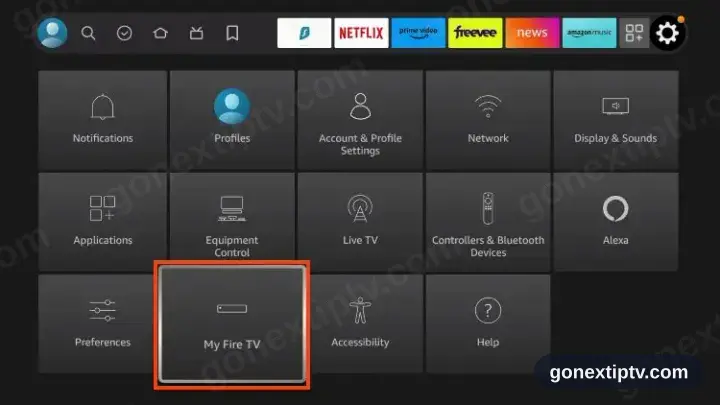
Settings, then My Fire TV
Back to the home screen, into the cog, then across to My Fire TV.
- 8
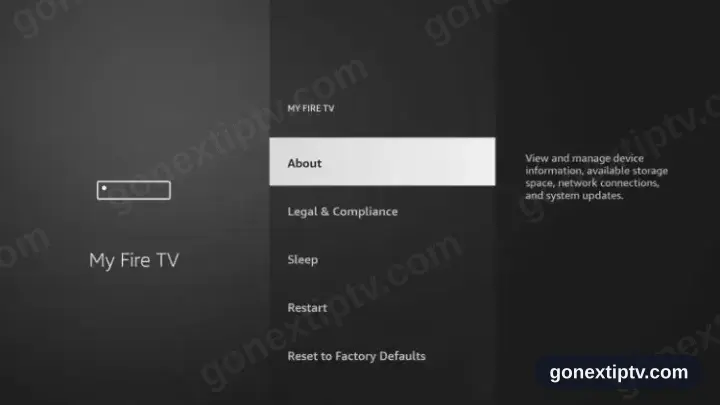
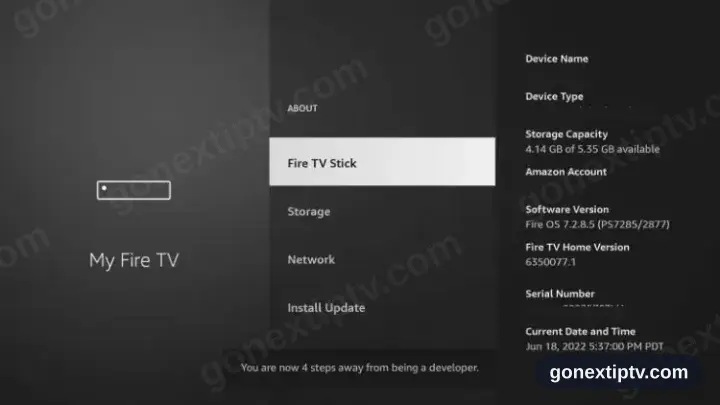
Open About
Top item of the My Fire TV list.
- 9
Seven presses on the device name
Sit on your device name at the top and press select seven times, until the developer message flashes up.
- 10
Developer options is now there
Back out to My Fire TV — a new Developer options row has appeared.
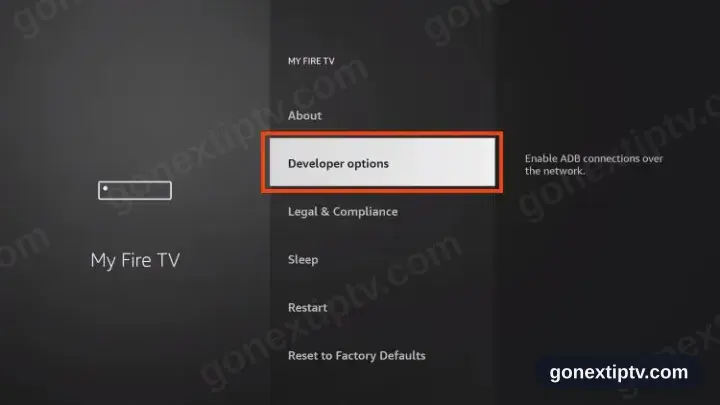
Older Fire TV Stick models surface Developer options straight inside My Fire TV, so the About detour does not apply.
- 11
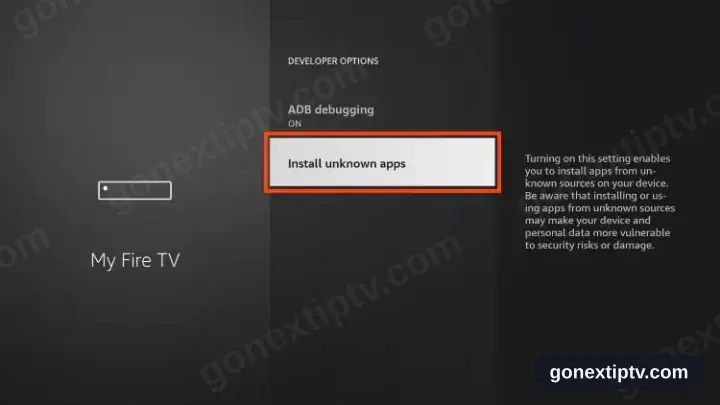
Open Install unknown apps
Unknown here means outside the Amazon Appstore. Nothing more sinister.
- 12
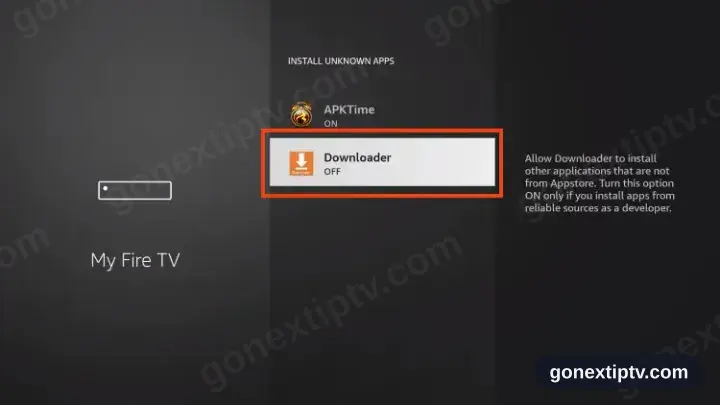
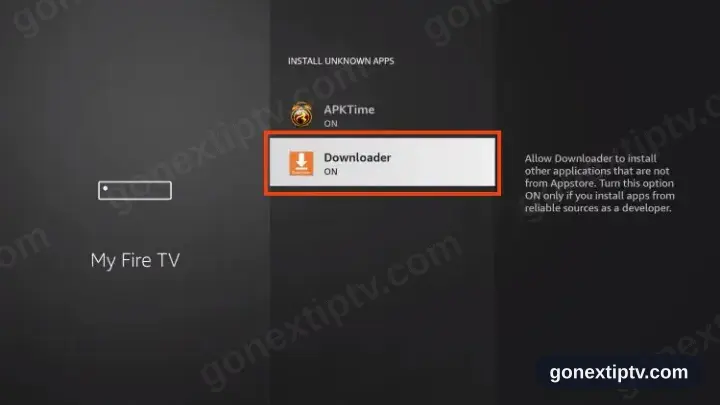
Flip Downloader on
Find Downloader in the app list and switch it on. Everything else stays as it is.
- 13
Unlocked
Downloader can install packages now. Firestick setup is done.
- 14
Step three · Pull in TiviMate
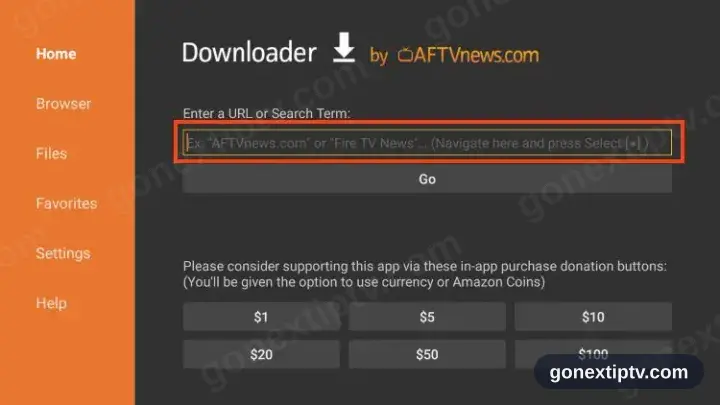
Open Downloader, tap the address box
Start Downloader and select the long box near the top of the Home tab.
- 15
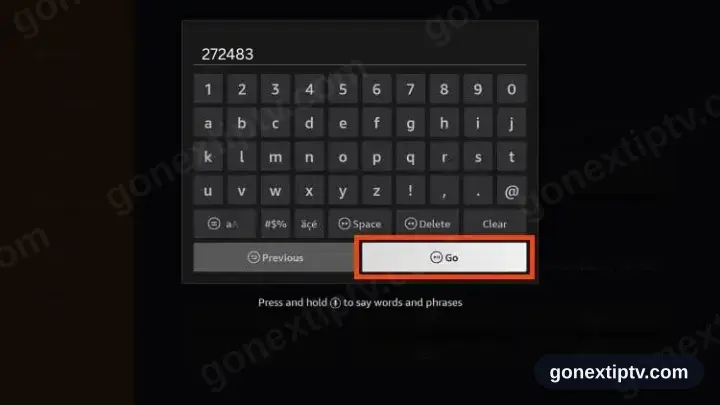
Key in 272483 and press Go
Six digits, no prefix, no dots. TiviMate publishes this code on tivimate.com.
- 16
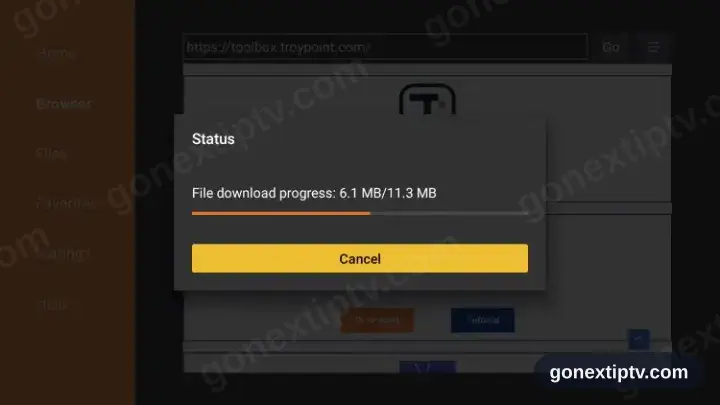
Let it pull the file
Download starts unprompted. Give the bar time to fill.
- 17
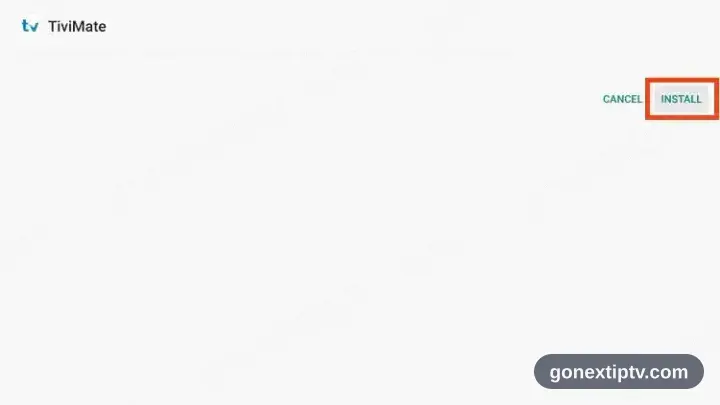
Press Install
The installer screen surfaces on its own when the file lands.
- 18
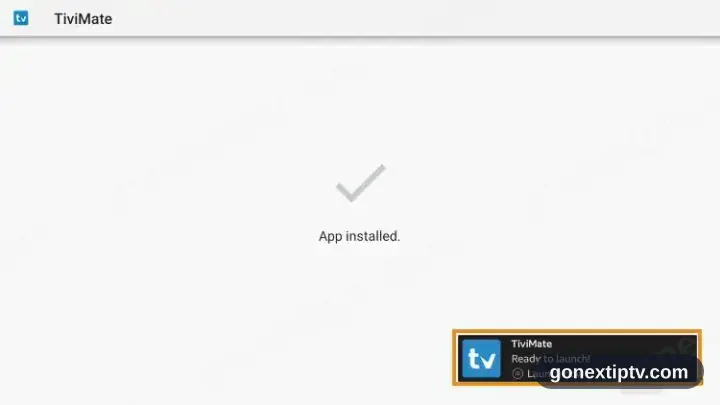
Watch for Ready to launch
That message means TiviMate is on the device.
- 19
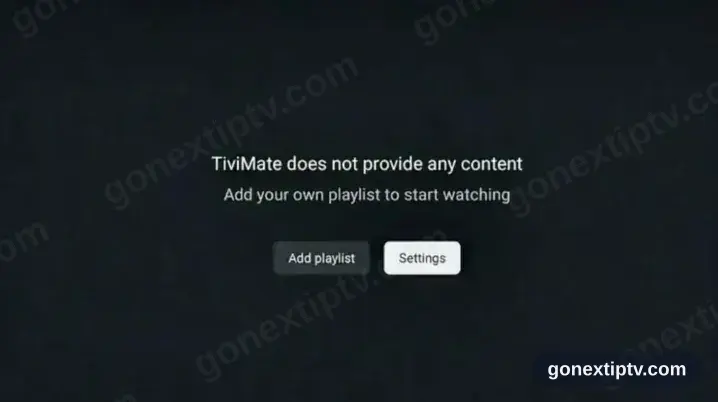
Open, then Add playlist
Start TiviMate and take Add playlist from the first screen.
- 20
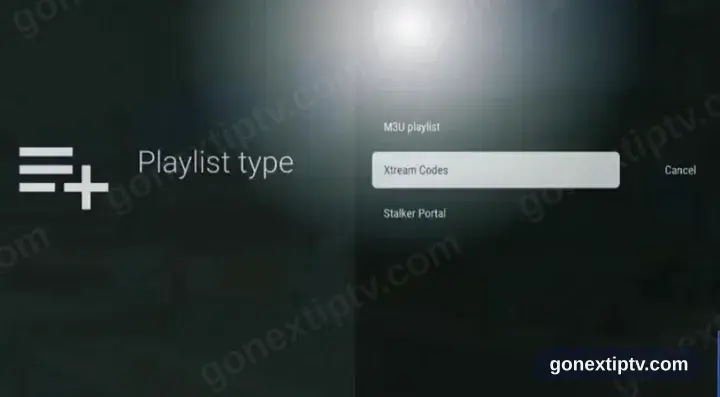
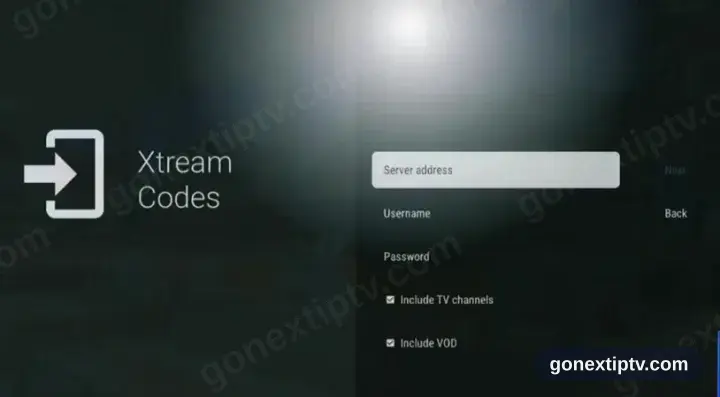
Set the type to Xtream Codes
Xtream Codes, not M3U.
- 21
Key in your credentials
Server URL, username and password, straight from your account on our website. Case matters on all three.
- 22
You are live
TiviMate populates channels, films and series. Hit play on anything to confirm the feed.
Your GO Next IPTV login details (username, password & server URL, M3U link or MAG portal URL) are in your account on our website as soon as your subscription is active. Can't find them? Contact support and we'll help.
Installing TiviMate on Fire TV Stick: what is different
The Fire TV Stick runs Fire OS, so TiviMate comes from the Amazon Appstore — the Google Play version will not appear here.
If TiviMate is not in the Appstore, Fire OS permits sideloading: enable Apps from Unknown Sources for a downloader app under Settings › My Fire TV › Developer Options.
Older Sticks ship with very little free storage. Uninstall unused apps before installing TiviMate, or the download fails near the end.