Install HotPlayeron your LG TV
- DeviceLG TV
- AppHotPlayer
- 3SetupFollow the steps
%20scale(0.100000,-0.100000)'%20fill='%23f59e0b'%20stroke='none'%3e%3cpath%20d='M2507%205029%20c-28%20-16%20-44%20-60%20-46%20-127%20-1%20-34%20-4%20-73%20-6%20-85%20-2%20-12%20-6%20-49%20-10%20-82%20-9%20-96%20-34%20-224%20-69%20-365%20-27%20-103%20-73%20-247%20-106%20-325%20-92%20-218%20-171%20-371%20-263%20-512%20l-60%20-91%20-56%2071%20c-72%2090%20-160%20171%20-276%20252%20-101%2071%20-132%2083%20-174%2065%20-37%20-15%20-43%20-29%20-86%20-193%20-41%20-160%20-94%20-311%20-210%20-597%20-166%20-410%20-227%20-603%20-270%20-855%20-26%20-160%20-28%20-524%20-2%20-664%2055%20-295%20178%20-568%20360%20-796%2061%20-77%20227%20-236%20309%20-297%20213%20-161%20454%20-267%20719%20-319%20140%20-27%20385%20-33%20534%20-13%20649%2086%201203%20557%201408%201199%2020%2061%2041%20137%2048%20170%207%2033%2014%2067%2016%2075%2029%20140%2025%20546%20-7%20772%20-6%2040%20-13%2089%20-15%20108%20-3%2019%20-7%2046%20-10%2060%20-3%2014%20-10%2052%20-16%2085%20-15%2082%20-35%20122%20-68%20133%20-48%2017%20-77%203%20-133%20-61%20-84%20-97%20-186%20-193%20-284%20-268%20-49%20-38%20-94%20-69%20-98%20-69%20-5%200%20-6%2018%20-2%2039%2025%20158%2026%20587%201%20781%20-33%20255%20-105%20555%20-175%20725%20-7%2017%20-19%2046%20-27%2065%20-165%20398%20-422%20759%20-742%201040%20-104%2091%20-138%20106%20-184%2079z'/%3e%3c/g%3e%3c/svg%3e)
- 1
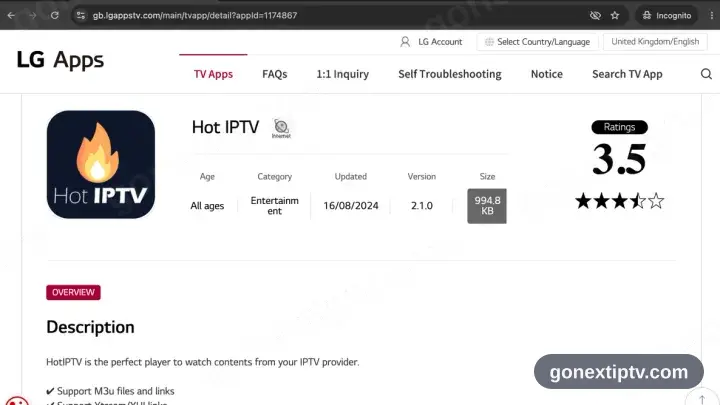
Look up HotPlayer in the LG Content Store
Press Home, open the LG Content Store and search for HotPlayer.
- 2
Install, then launch HotPlayer
Press Install, let it finish, then start the app.
- 3
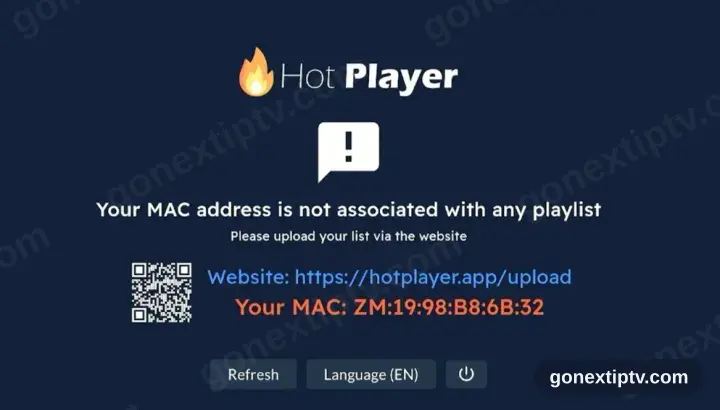
HotPlayer wants a playlist
First run shows no playlist plus a device ID and the address hotplayer.app/upload. Park that screen — you come back to it.
- 4
Attach the playlist at hotplayer.app/upload
From any browser, load hotplayer.app/upload. Pick Xtream Code as the source, drop in the server URL, username and password from your account on our website, then save.
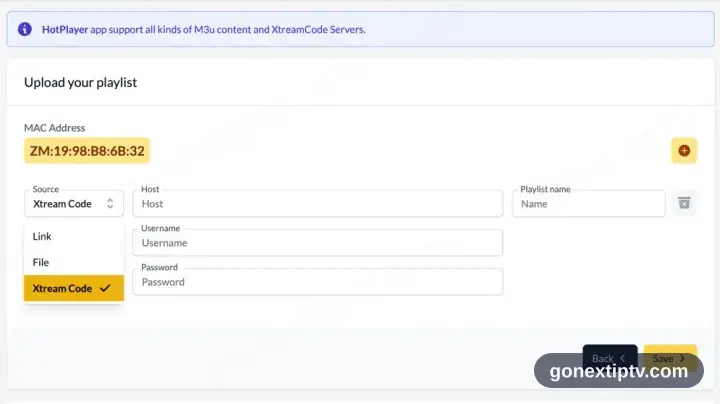
A phone, tablet or computer is needed here: the upload page lives on the web, not inside the app.
- 5
Hit Refresh in the app
Head back to HotPlayer and press Refresh. It reads the playlist you just attached.
- 6
You are live
Channels, films and series populate. Hit play on anything to confirm the feed.
Your GO Next IPTV login details (username, password & server URL, M3U link or MAG portal URL) are in your account on our website as soon as your subscription is active. Can't find them? Contact support and we'll help.
Installing HotPlayer on LG TV: what is different
LG TVs run webOS. Press Home on the Magic Remote to open the LG Content Store, then search for HotPlayer.
webOS has no sideloading on retail sets, so the LG Content Store is the only route. If HotPlayer is missing there, use another app from the device page.
Installed apps land at the end of the Home launcher bar. Drag HotPlayer to the front so it is one click away on match nights.