Install HotPlayeron your Android TV
- DeviceAndroid TV
- AppHotPlayer
- 3SetupFollow the steps
%20scale(0.100000,-0.100000)'%20fill='%23f59e0b'%20stroke='none'%3e%3cpath%20d='M2507%205029%20c-28%20-16%20-44%20-60%20-46%20-127%20-1%20-34%20-4%20-73%20-6%20-85%20-2%20-12%20-6%20-49%20-10%20-82%20-9%20-96%20-34%20-224%20-69%20-365%20-27%20-103%20-73%20-247%20-106%20-325%20-92%20-218%20-171%20-371%20-263%20-512%20l-60%20-91%20-56%2071%20c-72%2090%20-160%20171%20-276%20252%20-101%2071%20-132%2083%20-174%2065%20-37%20-15%20-43%20-29%20-86%20-193%20-41%20-160%20-94%20-311%20-210%20-597%20-166%20-410%20-227%20-603%20-270%20-855%20-26%20-160%20-28%20-524%20-2%20-664%2055%20-295%20178%20-568%20360%20-796%2061%20-77%20227%20-236%20309%20-297%20213%20-161%20454%20-267%20719%20-319%20140%20-27%20385%20-33%20534%20-13%20649%2086%201203%20557%201408%201199%2020%2061%2041%20137%2048%20170%207%2033%2014%2067%2016%2075%2029%20140%2025%20546%20-7%20772%20-6%2040%20-13%2089%20-15%20108%20-3%2019%20-7%2046%20-10%2060%20-3%2014%20-10%2052%20-16%2085%20-15%2082%20-35%20122%20-68%20133%20-48%2017%20-77%203%20-133%20-61%20-84%20-97%20-186%20-193%20-284%20-268%20-49%20-38%20-94%20-69%20-98%20-69%20-5%200%20-6%2018%20-2%2039%2025%20158%2026%20587%201%20781%20-33%20255%20-105%20555%20-175%20725%20-7%2017%20-19%2046%20-27%2065%20-165%20398%20-422%20759%20-742%201040%20-104%2091%20-138%20106%20-184%2079z'/%3e%3c/g%3e%3c/svg%3e)
- 1
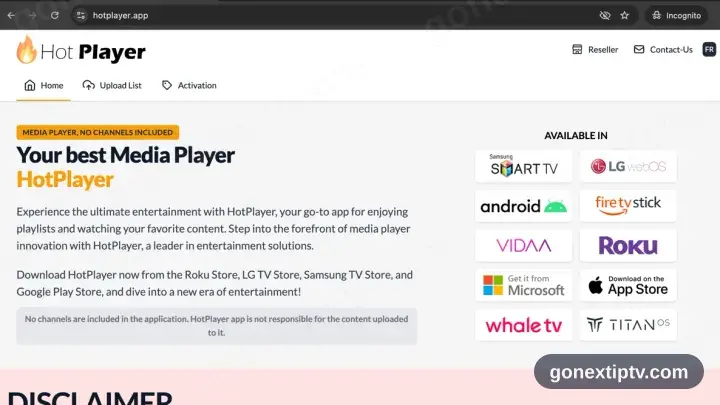
Load apk.hotplayer.app
Open apk.hotplayer.app in the TV browser. The file starts downloading by itself.
- 2
Install it, then open HotPlayer
Open the downloaded file and confirm. Allow installs from that browser or file manager if the TV asks, then start HotPlayer.
- 3
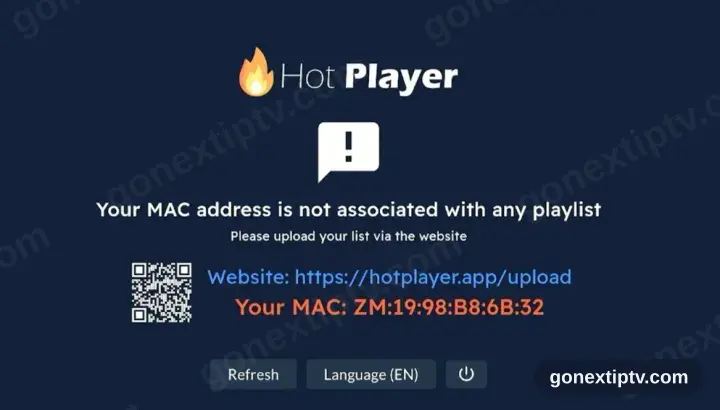
HotPlayer wants a playlist
First run shows no playlist plus a device ID and the address hotplayer.app/upload. Park that screen — you come back to it.
- 4
Attach the playlist at hotplayer.app/upload
From any browser, load hotplayer.app/upload. Pick Xtream Code as the source, drop in the server URL, username and password from your account on our website, then save.
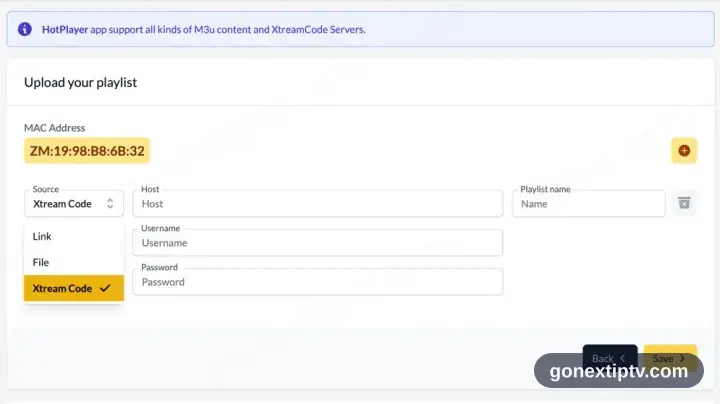
A phone, tablet or computer is needed here: the upload page lives on the web, not inside the app.
- 5
Hit Refresh in the app
Head back to HotPlayer and press Refresh. It reads the playlist you just attached.
- 6
You are live
Channels, films and series populate. Hit play on anything to confirm the feed.
Your GO Next IPTV login details (username, password & server URL, M3U link or MAG portal URL) are in your account on our website as soon as your subscription is active. Can't find them? Contact support and we'll help.
Installing HotPlayer on Android TV: what is different
Android TV and Google TV boxes install HotPlayer from the Google Play Store on the device — not from your phone's Play Store.
If HotPlayer is not on Play for your box, Android TV does allow sideloading: install a downloader app, then enable install-from-unknown-sources for it in Settings.
Most Android TV remotes have no pointer. HotPlayer is far easier to drive if it supports D-pad navigation, which is why it is recommended here.